Settings
Overview
Section titled “Overview”Settings control font sizes, font families, and custom shortcuts. They can be managed from the Settings UI in the browser or via the CLI.
Settings UI
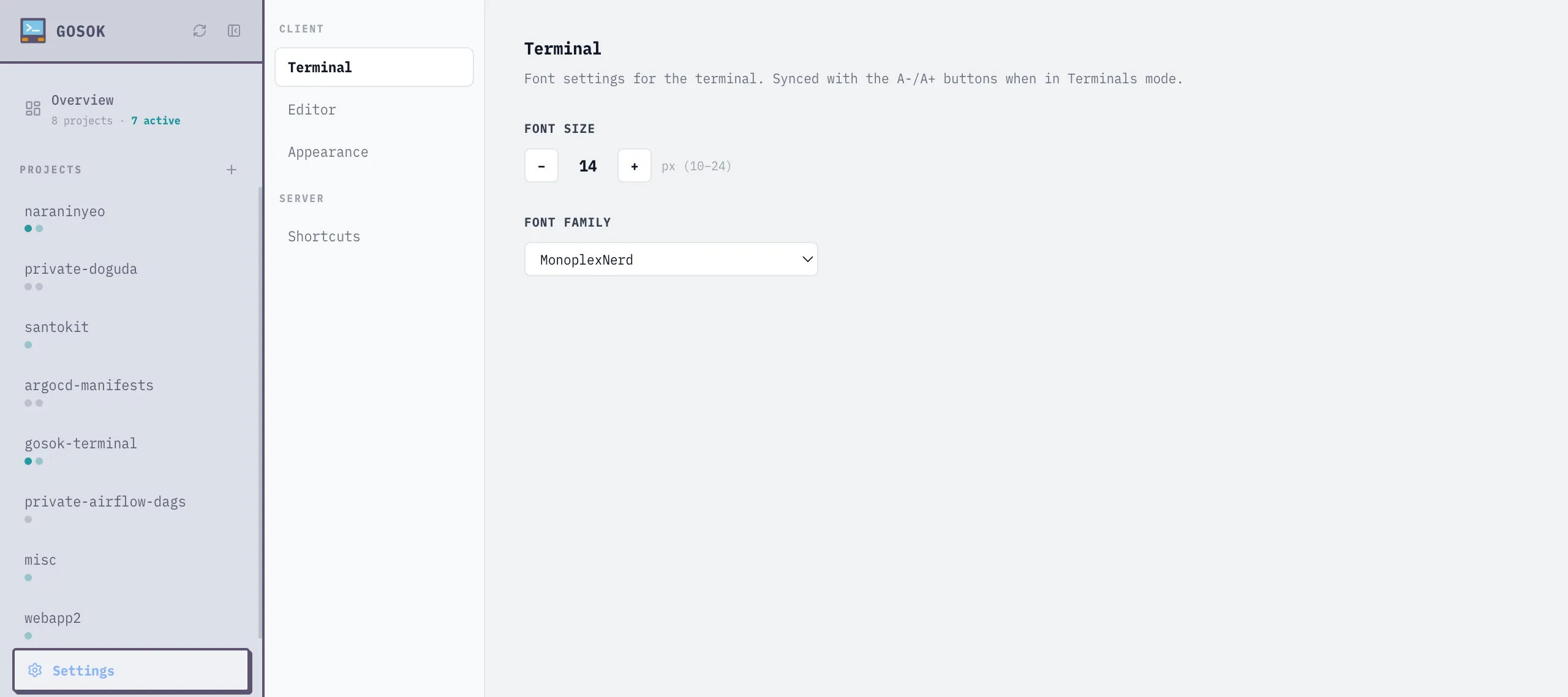
Section titled “Settings UI”Click the gear icon in the sidebar to open the settings page. Changes take effect immediately and persist across sessions.
# List all settingsgosok setting list
# Get a specific valuegosok setting get terminal_font_size
# Set a valuegosok setting set terminal_font_size 16
# Reset to defaultgosok setting delete terminal_font_size
Available Settings
Section titled “Available Settings”| Key | Default | Description |
|---|---|---|
terminal_font_size | 14 | Terminal font size in pixels |
terminal_font_family | MonoplexNerd, Menlo, ... | Terminal font family |
editor_font_size | 14 | Editor font size in pixels |
editor_font_family | MonoplexNerd, Menlo, ... | Editor font family |
text_scale | 1 | Global text scale multiplier |
shortcuts | [] | Custom keyboard shortcuts (JSON array) |
ai_tools | (see below) | AI tool configurations (JSON array) |
Custom Shortcuts
Section titled “Custom Shortcuts”Add custom shortcut buttons to the terminal header via the Settings UI or CLI:
gosok setting set shortcuts '[{"label":"Build","command":"make build\\n"}]'Each shortcut has:
label— Button text shown in the headercommand— Text sent to the terminal (use\\nfor Enter)
AI Tools
Section titled “AI Tools”Configure which AI coding tools appear in the tab creation menu:
gosok setting set ai_tools '[{"type":"claude-code","label":"Claude","command":"claude","enabled":true}]'Each tool has:
type— Unique identifierlabel— Display namecommand— Shell command to runenabled— Whether it appears in the menu