Projects & Tabs
Projects
Section titled “Projects”A project is a named workspace tied to a directory path. Each project has its own set of tabs.
- Create — via sidebar or
gosok project create <name> --path <dir> - Edit — click the pencil icon on hover to rename or change path
- Delete — from the edit form or
gosok project delete <id> - Reorder — drag and drop in the sidebar (long-press on mobile)
The sidebar shows activity dots for each tab in a project:
- Green dot — running and active (recent output)
- Dim green dot — running but idle
- Grey dot — stopped
- Yellow dot — has a flagged notification
Each tab runs an independent shell session via a PTY.
Lifecycle
Section titled “Lifecycle”| State | Description |
|---|---|
| Stopped | Created but no process running |
| Starting | PTY being allocated |
| Running | Active shell session |
Actions
Section titled “Actions”- Start — allocates a PTY and starts a shell
- Stop — sends SIGHUP to the process
- Close — stops (if running) and deletes the tab
Tab Switching
Section titled “Tab Switching”- Click a tab to switch to it
- On mobile, swipe left/right on the terminal area to switch between open tabs
- The last active tab per project is remembered across project switches
Mobile
Section titled “Mobile”gosok is fully usable on phones and tablets. The UI adapts automatically when the screen width is below 768px.
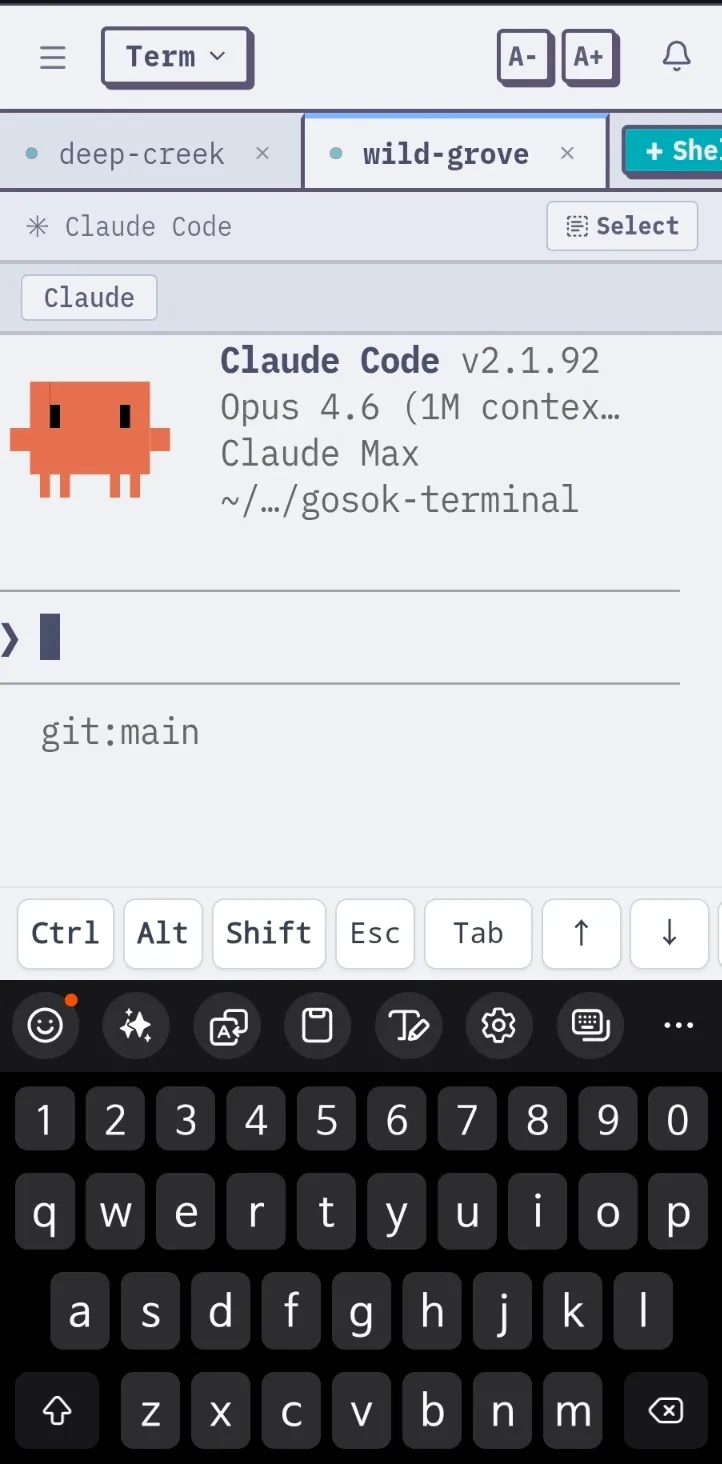
Navigation
Section titled “Navigation”- Sidebar — tap the menu icon (top-left) to open/close. Selecting a project or tab auto-closes it.
- Tab switching — swipe left/right on the terminal area, or tap tabs in the tab bar.
- Tab reorder — long-press (300ms) a tab to start dragging, then move it to the desired position.
- Project reorder — long-press a project in the sidebar to drag and reorder.
Terminal
Section titled “Terminal”- Shortcut bar — custom command buttons appear below the tab bar for quick input (e.g. arrow keys, Ctrl+C). Configure shortcuts in Settings.
- Text select — tap the Select button in the shortcut bar to enter select mode, which lets you select and copy terminal output.
- Scroll — vertical drag on the terminal scrolls through output history.
- Keyboard — tapping the terminal input area brings up the virtual keyboard. The layout adjusts to avoid being covered by the keyboard.
Safe Area
Section titled “Safe Area”The terminal layout respects safe-area-inset-bottom and tracks visualViewport changes, so it works correctly with notched devices and virtual keyboard resizing.