Quick Start
Start the Server
Section titled “Start the Server”After installing gosok, start the server:
gosok # if installed via Homebrew./gosok # if running a downloaded binaryOpen http://localhost:18435 in your browser.
Create Your First Project
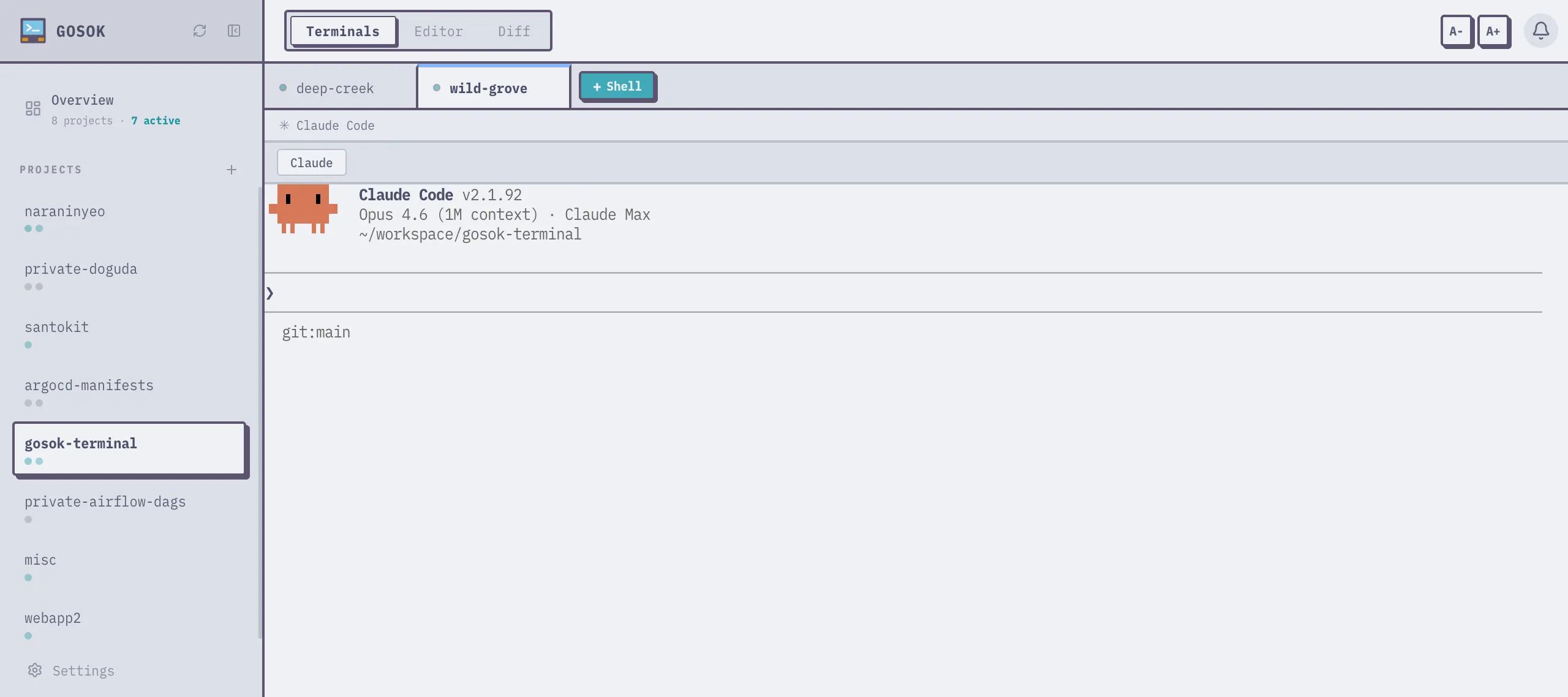
Section titled “Create Your First Project”- Click + New Project in the sidebar
- Enter a name and path (e.g., your project directory)
- Click + Shell in the tab bar to open a terminal
You now have a working terminal session in the browser.
Open Multiple Tabs
Section titled “Open Multiple Tabs”Click + Shell again to create additional tabs. Each tab runs its own shell session. Tabs persist when you switch between them — the processes keep running in the background.
Try the Editor
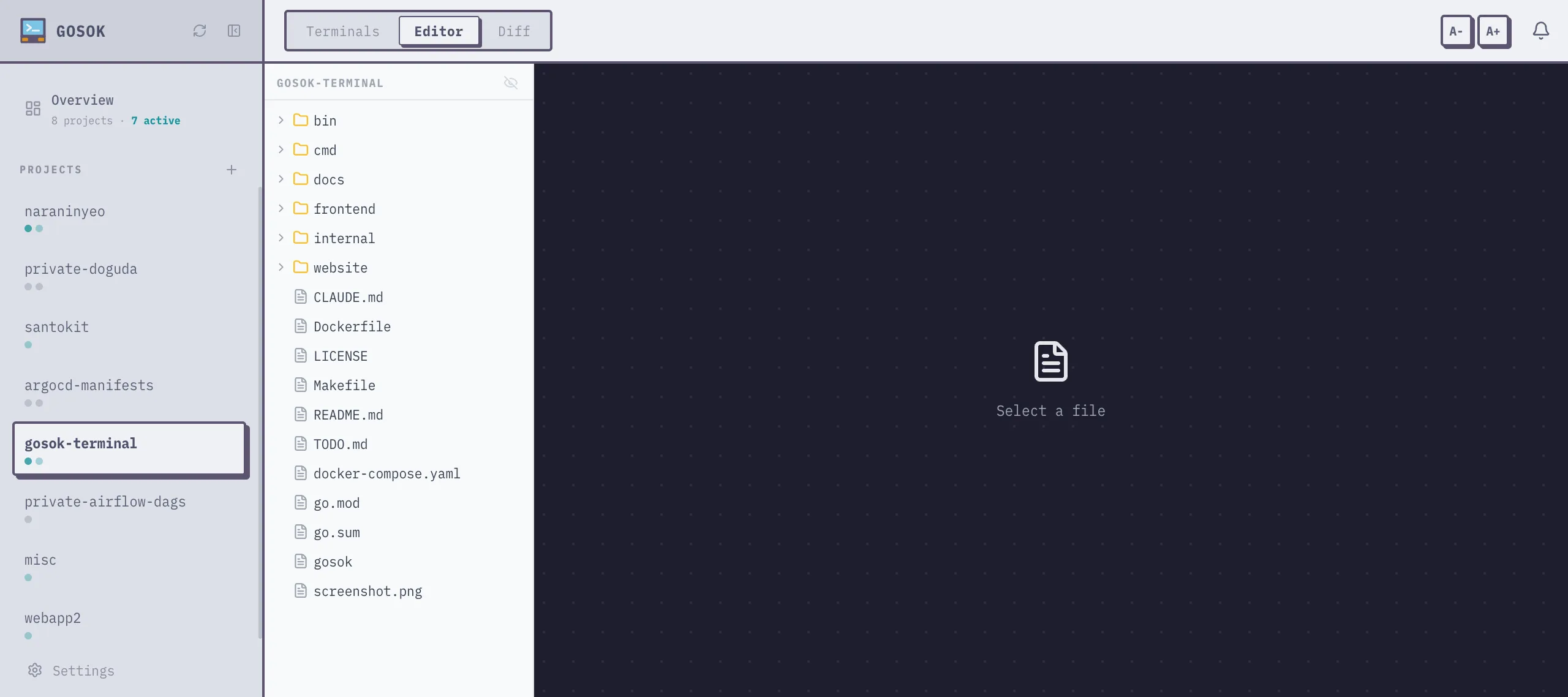
Section titled “Try the Editor”Click Editor in the mode switcher (top-right area) to open the built-in file editor. It supports syntax highlighting and Cmd+S / Ctrl+S to save.
Using the CLI
Section titled “Using the CLI”Each tab’s shell has GOSOK_TAB_ID and GOSOK_API_URL set automatically, so you can use the CLI from within any tab:
# Send a message to another tabgosok msg send <tab-id> "hello"
# Read your inboxgosok msg inbox
# Send a browser notificationgosok notify "Build done" --body "All tests passed" --flag
See the CLI Reference for the full command list.
Development Mode
Section titled “Development Mode”If you’re contributing to gosok itself:
flox activate # set up Go + Node.jsmake dev # backend + frontend with hot reloadKeyboard Shortcuts
Section titled “Keyboard Shortcuts”| Shortcut | Action |
|---|---|
Cmd+S / Ctrl+S | Save file (in editor mode) |
Mobile
Section titled “Mobile”gosok works on phones and tablets. Open http://<your-ip>:18435 on your mobile browser.
| Gesture | Action |
|---|---|
| Swipe left/right | Switch tabs |
| Long-press tab | Reorder tabs |
| Long-press project | Reorder projects |
| Tap Select | Enter text select mode |
See the Mobile section in the Projects & Tabs guide for full details.